![logo icon white.png]](https://help.hijiffy.com/hs-fs/hubfs/logo%20icon%20white.png?width=50&height=50&name=logo%20icon%20white.png)
Navigation. Inbox → open any email thread → the AI suggestion appears at the top of the thread.
Generation & animation. Generation starts when an email arrives. Because the multi-agent system does real-time research, it can take up to 30 seconds; a generation animation shows the draft is being prepared.
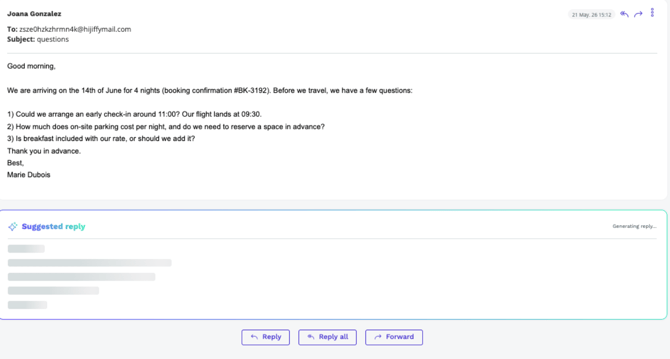
Interaction. Once ready, the suggestion is displayed. Hovering highlights the text for a quick preview; clicking it opens the draft in the email editor.
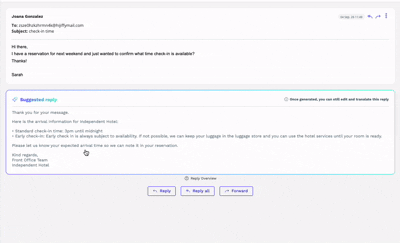
Use Cases:
Use case 1: Suggested Reply has no human intervention needed
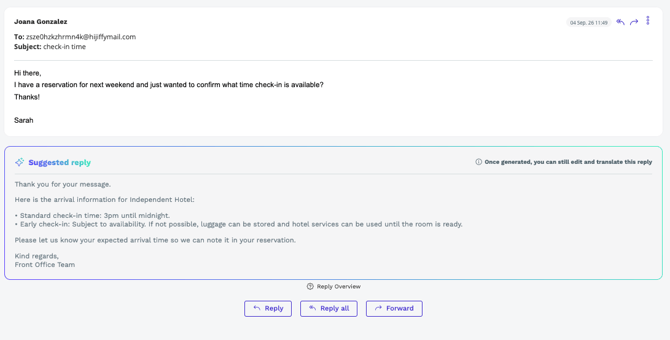
This covers questions the Knowledge Base can answer directly and without any judgment call - straightforward information the guest can be given as-is, with no need for the agent to confirm availability or anything else first.
In this case, the agent can see the suggested reply, and since there is no human intervention needed (for example confirming a reservation), the agent clicks the suggestion, the editor opens with the draft ready, and they send.
Use case 2: Suggested Reply needs human intervention
This may happen for two reasons: either the information is missing from the Knowledge Base documents and/or it needs any kind of human intervention or confirmation.
When this happens, we display a yellow bar (as can be seen in the below image) that indicates what is missing so that the agent can know.
We also display some placeholders in the Suggested reply, so that the agent can know where and what they need to fill in with information.
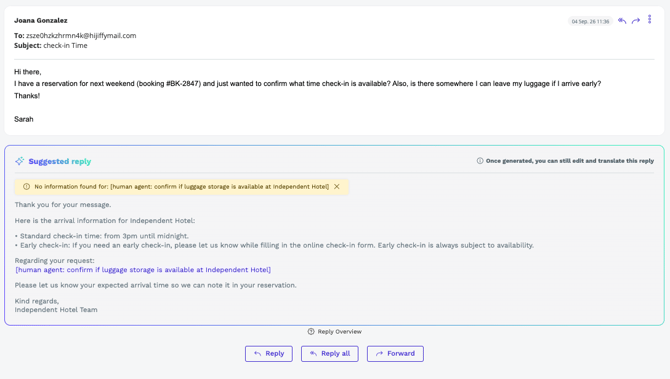
Safety guardrails. For Partial or No-Answer / agent-reviewed suggestions, the Send button is disabled until the agent fills in the human tags / missing information.
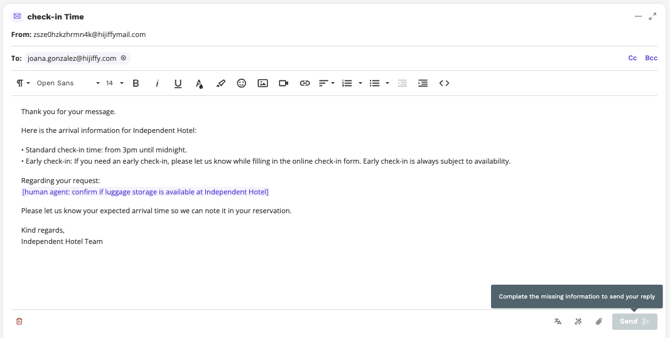
Once the agent fills in the necessary information, and there are no more tags in the editor, the send button is enabled so they can send the email.
Note: We validate if the agent inserts missing information, but we don’t validate the content of that information; that will be the agent’s responsibility.
Language, tone & personalization
- The Copilot addresses the guest by name and applies the correct signature automatically.
- Suggestions are always generated in the agent's defined console language for easy review.
- After review, agents use the dedicated translation menu to switch the reply into any language supported by the console.
- Once language and content are set, agents can use Power Tools to adjust tone (formal vs. friendly) before sending.
Translation workflow
Translation has been moved out of Power Tools into a dedicated, prominent button to facilitate agent’s work and be more accessible.
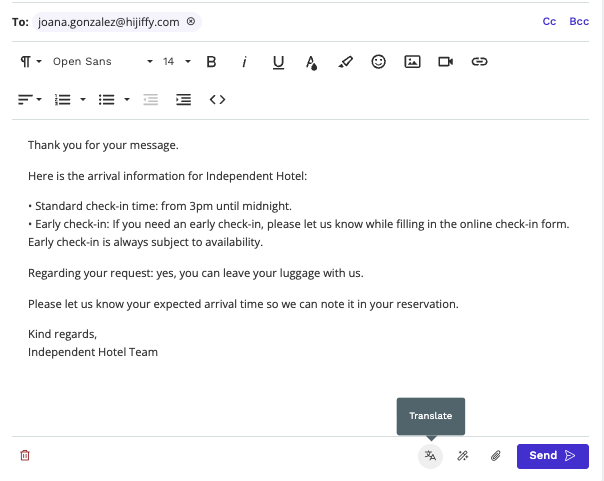
- Native review - drafts always appear first in the agent's console language.
- Multi-language output — switch and send in any supported language.
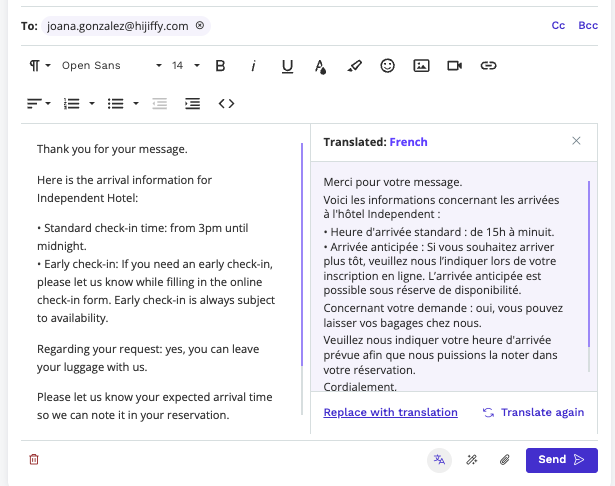
- Side-by-side view - compare original and translated versions.
- Real-time updates - edit the original and request an updated translation before sending.
- Smart priority - the language list prioritises the agent's native language and the language of the incoming guest email.
Insights & transparency
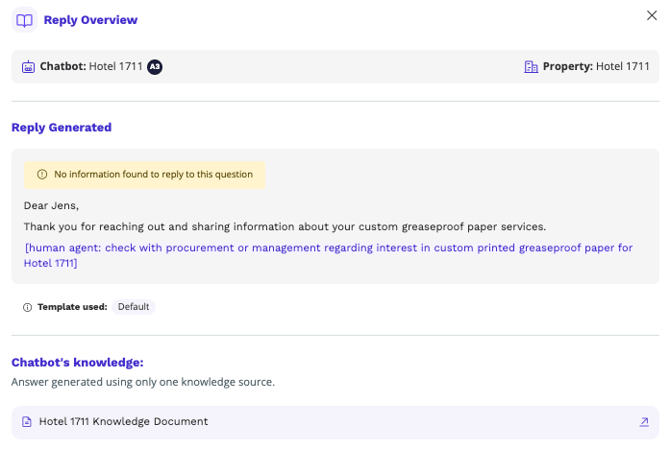
Every suggestion carries an Insights panel so agents (and admins) know exactly where the information came from:
- The suggested reply — the full AI-generated text.
- Templates used — which Answer Template(s) guided the response.
- Sources — the specific Knowledge Base documents or website URLs referenced.
- Context details — the specific chatbot and property involved.
- Suggestion type — a clear label (e.g. "Partial Suggestion").
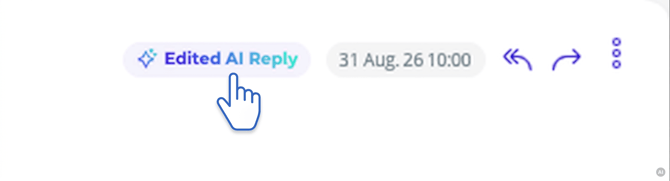
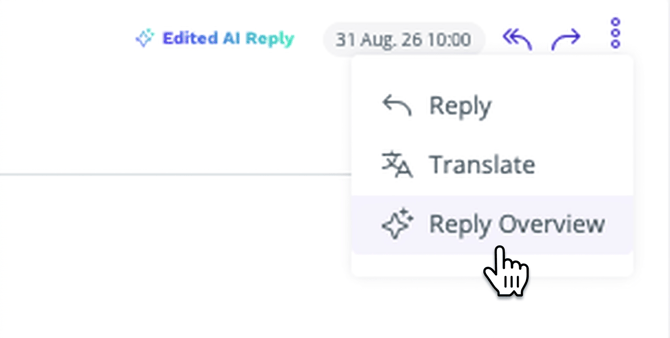
Where can we see insights?
When a suggested reply is generated
By clicking on the generated label
By clicking on the 3-dot menu
On-demand thread summaries
Agents work in shifts and many times they need to reply ongoing threads. It takes them time to read previous emails from a thread to be up to date and being able to reply an email from a thread.
For this reason, Email Copilot adds Summarise Thread functionality: for long, complex conversations, agents will be able to generate an AI summary to catch up instantly - designed for handovers and high-volume inboxes. This button is not visible for all emails/threads; please see below the rules for the usage of this feature:
- Smart visibility - the "Summarize" button appears only for threads with 3+ emails or very long single messages.
- Dynamic refresh - if 3+ new emails arrive after a summary was read, the button reappears with an updated briefing.


What it does / what it does not do
What it does
- Drafts replies grounded in the client's Answer Templates and Knowledge Base, on thread open
- Blends multiple templates + real-time KB data into one draft when a guest asks several things.
- Flags missing information with [human agent: …] tags instead of guessing.
- Generates in the agent's console language and supports full translation before sending.
- Exposes sources, templates and context via Insights - for accepted and rejected suggestions.
- Tags and records every send for auditing.
- Skips no-reply, marketing and automated senders automatically.
What it does not do
- Does not send anything automatically — every send is a human action.
- Does not triage or decide which emails deserve a reply based on content (only sender-based exclusions).
- Does not generate for excluded senders (no-reply / marketing / automated).