![logo icon white.png]](https://help.hijiffy.com/hs-fs/hubfs/logo%20icon%20white.png?width=50&height=50&name=logo%20icon%20white.png)
The Airbnb integration brings your guest conversations into HiJiffy’s centralized inbox, so your team can manage Airbnb messages alongside every other channel. It is available on Pro and Premium plans.
With the Airbnb integration you can:
- Receive and reply to Airbnb guest messages directly from the HiJiffy Console, alongside all your other channels.
- Automate answers with your chatbot, or reply manually with the help of canned responses.
- See reservation details (confirmation code, dates, guests) attached to every conversation automatically.
- Import your listing information (house rules, Wi‑Fi, check-in instructions, amenities and more) into your property's owledge Base, rewritten by AI so your chatbot can answer guest questions from day one.
Before you start
- Airbnb account: You'll need the login credentials of the Airbnb account that hosts your listings. One Airbnb account can be connected per HiJiffy client. If your listings are spread across several Airbnb accounts, you can use Airbnb's co-host feature to consolidate them under one account, a co-host only needs messaging permissions to work with HiJiffy.
-
Managing Multiple Airbnb Accounts (Co-hosting): Currently, you can only connect one Airbnb account per HiJiffy account. If you manage listings across multiple Airbnb accounts (e.g., Account A and Account B), you must use Airbnb’s Co-host feature to connect them all to HiJiffy:
- On Airbnb: Log in to Account B and add Account A as a co-host to all of its listings.
- On HiJiffy: Connect Account A.
Because Account A is now a co-host for Account B's properties, HiJiffy will be able to successfully display and manage all your listings through a single connection.
Step 1 - Connect your Airbnb account
- In the HiJiffy Console, go to Channels.
- Find Airbnb in the sidebar and click Manage Airbnb Connection.
- Click Connect. An Airbnb login window opens.
- Log in with your Airbnb credentials and authorise HiJiffy.
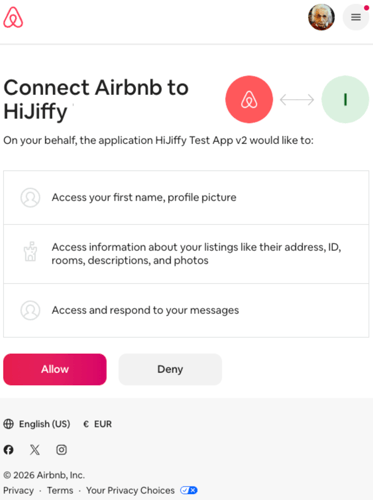
Once authorised, the user can then close the window and the connection manager shows Connected with your Airbnb first name.
Reconnecting? If you connected in the past and some listing information (like check-in times) isn't importing, disconnect and connect again, this refreshes your authorisation with the full set of permissions.
Important Note: if the property you want to connect to AirBnb is not available on the HiJiffy console, it will need to be created.
Step 2 - Link each listing to an existing or new property
Linking a listing to a HiJiffy property unlocks the Knowledge Base, chatbot, and property document for that listing.
Note: If your existing listings in Airbnb have a 1:1 ratio in HiJiffy, meaning one listing equals one property in HiJiffy, please follow the instructions in Option A.
If your existing listing in Airbnb is only a portion of a property in HiJiffy, please follow the instructions in Option B
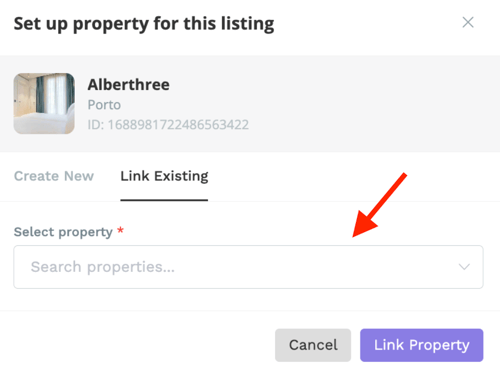
Option A, Link an existing property
- Click + and switch to the Link existing tab.
- Select the HiJiffy property and click Link.
You can unlink at any time with the unlink button in the Actions column.
Option B, Import a new property from Airbnb
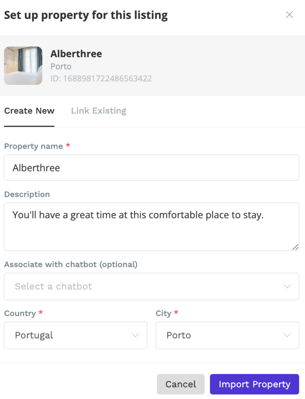
- Click + (Import Property) in the Actions column.
- The form pre-fills the name, description, city, and country from your Airbnb listing.
- Optionally assign a chatbot, then click Import.
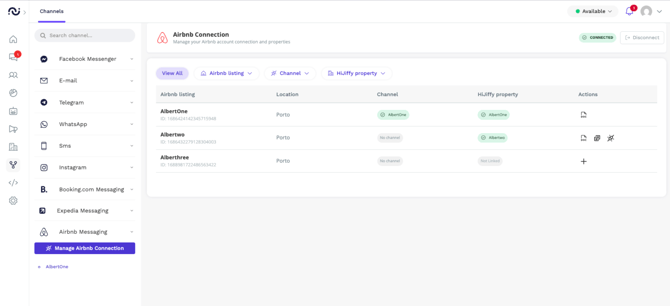
After connecting, a table loads with all the listings on your Airbnb account.
If you already have an existing connection, for each listing you can see its photo, location, whether it already has a HiJiffy channel, and whether it's linked to a HiJiffy property.
If one property has several Airbnb listings
Some accommodations, for example a guesthouse with individually bookable rooms, or a building with several apartments, appear on Airbnb as separate listings. Airbnb has no concept of "rooms inside a listing", so HiJiffy mirrors this: each Airbnb listing needs its own HiJiffy property, created one at a time using the steps in “Import a new property”
.png?width=296&height=208&name=image%20(1).png)
A few notes for this setup:
- Newly created properties start empty, they don't copy the document of your main property. You can import each listing's own information from Airbnb (recommended, see below) or copy content from your main property document.
- Setting up listings one by one is intentional (it respects Airbnb's request limits); there is no bulk setup yet.
- If you manage a large number of listings, contact our support team, we're happy to help you plan and set up the structure.
Step 3, Create a channel for each listing
A channel is what brings a listing's guest messages into your inbox.
- Click Add channel on a listing that shows No channel.
- The channel creation form opens pre-filled with the listing's details.
- Complete the form and save.
Important Note: the chatbot needs to be always selected when creating the channel.
Guest messages from that listing will now arrive in your HiJiffy inbox.
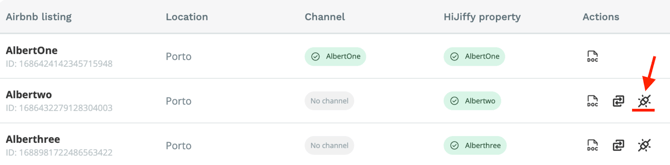
(Optional) Step 4, Import your listing information into the Knowledge Base
With the Airbnb integration, you can enrich your property's Knowledge Base with listing information from Airbnb, giving your guests access to clearer, more complete answers. We recommend using this feature to strengthen your Knowledge Base and improve the guest experience.
Once a listing is linked to a property, the Import KB (brain) icon appears in the Actions column. This pulls your listing's content from Airbnb, description, house rules, house manual, Wi‑Fi details, amenities, check-in and check-out times, directions, check-in guide steps, and more, and uses AI to rewrite it into clear, complete answers your chatbot can use.
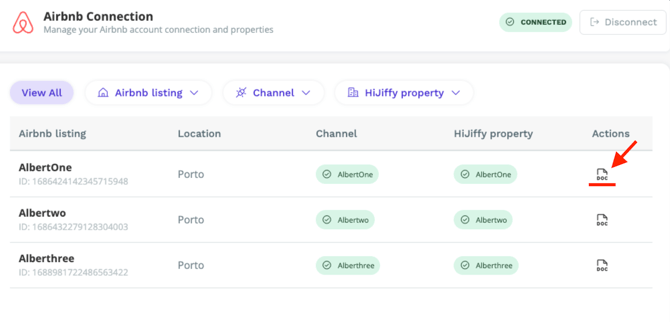
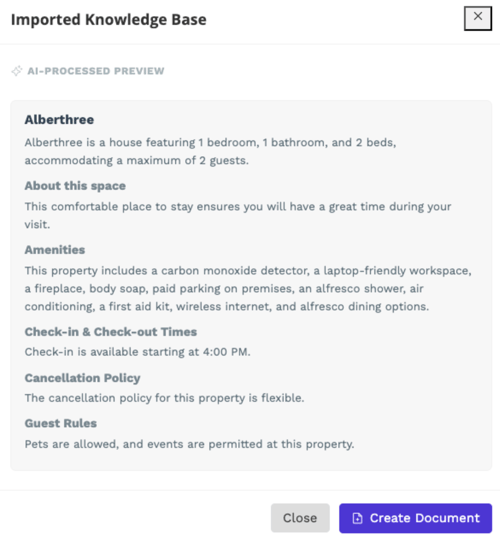
You'll see a preview before anything is saved:
- Create Document, if the property has no document yet, one is created with the imported content.
- Replace Document, overwrites the existing document with the imported content.
- Append to Document, shows a side-by-side preview of what will be added. Content already covered in your document is skipped, new facts are merged into existing sections, and entirely new topics are added as new sections. The preview is editable, click any part of the merged text to adjust it before confirming.
Important: The import merges Airbnb information into your Knowledge Base, but it does not detect conflicts. If your document says check-in is at 15:00 and your Airbnb listing says 14:00, both will be there until you fix it. After importing, review the document and resolve any conflicting details, a clean, consistent Knowledge Base is what makes automated answers accurate.
Using the Airbnb channel day to day
Replying to guests
Airbnb conversations appear in your inbox like any other channel. Reply directly from the Console, canned responses work here too.
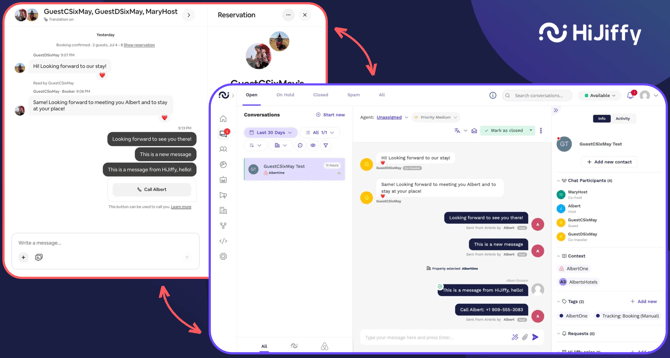
You can choose how the channel operates:
- Fully automated, your chatbot answers guest questions automatically using the property's Knowledge Base.
- Agent-assisted, your team replies manually from the unified inbox.
Both modes are fully supported. If you enable automation, make sure the Knowledge Base is complete and up to date first, the chatbot answers from what it knows, and gaps or conflicting information are the main cause of imperfect automated replies.
Reservation details on every conversation
Every conversation includes a reservation summary with the confirmation code, check-in and check-out dates, number of guests, and booking status, so your team always replies with full context. Guest details like name and phone number appear once Airbnb confirms the reservation.
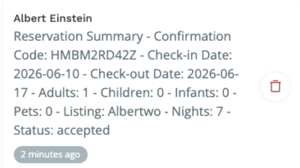
Remember: booking changes, cancellations, and all reservation management happen on Airbnb.
Finding a reservation
You can search reservations by confirmation code or guest name (with optional filters for property and dates) from the New Conversation window or the search bar. Opening a conversation from a reservation requires the guest to have sent at least one message, otherwise, the conversation can't be started (an Airbnb platform rule).
Sending photos and videos
You can send images (JPEG, PNG, GIF) and videos (MP4, QuickTime) to guests. Note that Airbnb doesn't allow text and media in the same message, therefore these need to sent as separate messages. Documents and PDFs aren't supported by Airbnb messaging.