![logo icon white.png]](https://help.hijiffy.com/hs-fs/hubfs/logo%20icon%20white.png?width=50&height=50&name=logo%20icon%20white.png)
What are Knowledge Documents?
Knowledge Documents are the foundation of your Aplysia 3 chatbot. They contain all the information the chatbot uses to respond to guest questions.
You’ll have two types:
Company Knowledge Document – Shared across all properties. Use it for information that applies to your entire brand or group.
Property Knowledge Document – Specific to each hotel or property. Use it for localized, operational, and on-site details.
If you only have one property, it is recommended that you keep only one of the documents.
Which sections should my documents have?
Every property document is unique, so you can add the sections that better fit your needs, but for each property consider including:
-
Check-in & Check-out Info
-
Room Types & Amenities
-
Breakfast and Meal Times
-
Restaurants & Bars (names, hours, menus)
-
Wellness & Spa Services
-
Parking Instructions
-
Pet Policy
-
Child Policy / Kids Club Details
-
Events or Seasonal Offers
-
Shuttle or Transport Options
-
Wi-Fi Access Instructions
-
Emergency Info (e.g., medical support nearby)
Inside these sections, make sure to organize the information in subsections that make sense (e.g. main topic: Check-in; sub-topics: Early Check-in, Online Check-in, Check-in on behalf of someone else)
If your property does not offer a commonly expected service, it's helpful to mention that directly in the document inside its own sections and subsections. This ensures the chatbot can set clear expectations with guests, in case they ask. For example:
"This property does not have a swimming pool."
"Breakfast is only served at the restaurant; in-room service is not available." - you can even add this information at a “Room Service” subtopic, e.g..
Suggested Sections for your Company Knowledge Document
Use this document for information that should be shared across all your properties:
- Cancellation policies
- Loyalty program details (you can specify the name of your Loyalty program!)
- Sustainability commitments
- Corporate contact information
If a chatbot should NOT use the company document, you can disable it directly in the Company Knowledge Document settings by deselecting it from the list of associated chatbots.
Keeping the Knowledge Document updated
Aplysia 3 is only as good as the content you give it. Make it a habit to:
- Review documents monthly
- Update details for new events, renovations, or policy changes
- Remove outdated information
When you publish updates, the document enters a "Processing" status. It will begin answering questions again once marked "Generating live answers.". While processing, the chatbot continues using the last live version of the document.
Knowledge Document Guidelines
To get the best answers, write with clarity, structure, and consistency. Keep the guest in mind.
✅ DO:
- Write only in english - when needed, chatbot will translate to your guests’ language
- Write in short, clear sentences
- Use proper formatting (headings, bullet points, bold text)
- Separate topics into clear sections and subsections
- Mention the names of internal spaces or services (e.g., “The Crystal Spa”) in a way that is clearly understood
- Mention common services, even if you do not offer them
❌ AVOID:
- Topics instead of full sentences
- Overly technical or ambiguous wording
- Internal-only jargon (unless explained)
- Long paragraphs with mixed topics
Use clear heading levels
Use proper heading structure (H1, H2, H3, H4) to create a clear content hierarchy. Structured headings help both the AI model, internal search systems, and you:
- Understand the scope and intent of each section
- Improve how well answers are generated
Tips:
- Use H1 for top-level sections (e.g., “Check-in & Check-out”)
- Use H2, H3 or H4 for sub-sections (e.g., “Check-in”, “Early Check-in”)
- Use Normal for text
- Avoid text inside H1 exceeding 10,000 characters, including headings
Why this is important?
Our models rely on heading-based aggregation to understand and retrieve related information together. When a user asks about a topic (for example, check-in policies), the system can pass the entire relevant heading group to the model - ensuring it gets all the necessary details (hours, age limits, early/late options, online/self check-in, etc.) in one coherent chunk.
This prevents the model from “losing” information across scattered paragraphs and improves answer quality and consistency. The most important headings for this are H1 and H2.
Example of well-organized Check-in & Check-out policies
- H1 – Check-in & Check-out
Everything you need to know about arriving, collecting your keys, and leaving smoothly.- H2 – Check-in
Our check-in process is designed to be quick and flexible, with multiple ways to access your room depending on your preference.- H3 – Check-in hours
Check-in is available from 14:00 to 00:00. We also offer 24-hour check-in. The minimum age for check-in is 18 years. - H3 – Check-in options
Choose the check-in method that works best for you:- Standard check-in
Check in at the front desk. We’ll confirm your reservation, verify identification, and provide room access details, Wi-Fi information, and any helpful tips for your stay. - Online check-in
Complete your details before arrival to speed things up. Once finished, you’ll receive instructions on how to collect your keys/access your room with minimal waiting time. - Self check-in
Arrive and check in independently using our self-service option (e.g., kiosk/lockbox/access code). This is ideal for late arrivals or guests who prefer a contactless experience.
- Standard check-in
- H3 – Check-in hours
- H2 – Check-out
- H3 – Check-out hours
Standard check-out is available until 11:00. If you need to leave earlier, you can arrange an express check-out and return keys/access items as instructed. - H3 – Late check-out
Late check-out may be available upon request, depending on occupancy and housekeeping schedules. Fees may apply, and we recommend requesting it as early as possible (ideally the day before departure).
- H3 – Check-out hours
- H2 – Check-in
How this improves chatbot responses
When content is structured like this, the chatbot can:
- Answer the user’s question directly (e.g., “Check-in is from 14:00 to 00:00, minimum age is 18.”)
- Then guide the user to the right related options (e.g., “Would you like standard, online, or self check-in?”)
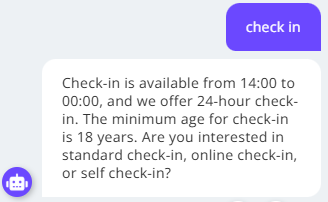
Chatbot replied with basic information about check in, and then tried to guide user through is knowledge “standard check-in”, “online check-in” or “self check-in”.
Managing Too Many Headings
When a section contains many H2/H3 items, add a brief summary paragraph directly under the H1 (and, if needed, under key H2s). This gives models, a quick overview of what’s covered and where to find information, before they go into the detailed content.
- H1 – Rooms
- We offer 7 elegant room types (Room A–Room G), each with its own size, layout, and amenities to suit different needs and preferences.
- H2 – Room types
- H3 – Room A
- Description:
- Details:
- H3 – Room B
- Description:
- Details:
- H3 – Room C
- Description:
- Details:
- H3 – Room D
- Description:
- Details:
- H3 – Room E
- Description:
- Details:
- H3 – Room F
- Description:
- Details:
- H3 – Room G
- Description:
- Details:
- H3 – Room A
- H2 – Room amenities
- H2 – How to upgrade Room
- H2 – Accessible rooms
- H2 – Room service
Avoid embedding imagesWhile images can technically be uploaded, the chatbot ignores them. As such, make sure to:
- Always write out the information in plain text
- If visual instructions are critical, describe the steps clearly using words
- If images are mandatory, configure topic answers for them to be triggered
Write Detailed Descriptions
Headings followed by only a few short or vague words tend to degrade both search performance and the quality of chatbot responses. The descriptions you provide serve two critical roles:
- They help the AI understand and retrieve the most relevant content.
- They influence the tone and structure of the chatbot's replies to users.
To maximize effectiveness, ensure that every heading is followed by a clear and informative paragraph that:
- Explains the main point thoroughly and naturally.
- Includes relevant context and details (such as times, limitations, contact info, etc.).
- Uses natural phrasing and complete sentences that resemble how a person would speak.
Why this is problematic:
- Too brief: Lacks detail, leaving the AI with little context to generate helpful answers.
- Poor retrieval: Misses out on using key phrases or terms that match guest queries.
- Lacks consistency and tone: Messages feel robotic or unclear, which may impact chatbot reply.
Aim for natural-sounding and informative descriptions that anticipate what guests may want to know.
When the document doesn’t cover a topic
If a document doesn’t mention a topic, the chatbot can’t reliably answer questions about it.
Example: Pool information is missing
If the document has no information about a pool and the user asks:
“Does the hotel have a pool?”
The chatbot will typically respond with something like:
- “I don’t have information regarding a swimming pool.”
- “I’m sorry, I couldn’t find an answer to what you said.”
Best practice: Add missing topics proactively
If guests frequently ask about pools, add a dedicated section to the document—even if the answer is no. This improves accuracy and reduces “no information found” responses.
Suggested structure
- H1 – Amenities
- (other amenities)
- H2 – Swimming Pool
- The hotel does not have a pool
Hyperlinks best practicesAdding links can be helpful when referencing menus, terms and conditions, or external booking tools, eg.. Make sure to:
- Use clear, descriptive link text instead of raw URLs.
- Ensure hyperlink descriptions are intuitive and clearly describe what the link leads to.
- Make sure the destination is relevant and matches the description
- Don’t overload your document with too many links - use them selectively to enhance
Example:
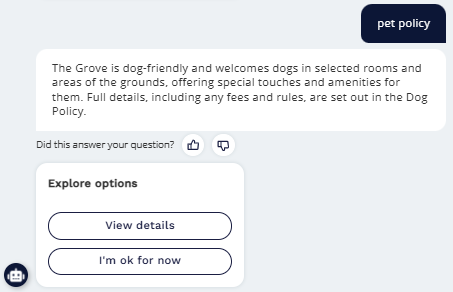
The Grove is dog-friendly and welcomes dogs in selected rooms and areas of the grounds. Special touches and amenities are provided to help four-legged guests feel at home. Full details, including any fees and rules, are set out in the Dog Policy.
Chatbot Reply
Use Tables Wisely
Tables can be a great tool to structure specific types of content - like opening hours or pricing grids - but should be used thoughtfully.
✅ DO:
- Use tables sparingly and only when they add clear value to your content.
- Use tables for structured, repeating data (e.g., prices by room type)
- Keep rows and columns minimal and easy to read
- Add a table title
- Add headers for clarity
- If you have extensive data, consider breaking it into smaller tables, summarizing in text, or converting to lists.
❌ AVOID:
- Tables with many rows/columns or overly complex data as they can strain system performance.
- Using tables for things that could be more readable as text or lists
Examples of issues and how to solve them
This section will be updated with more examples as we have them.
Optimizing replies to vague user messages
Users often send vague questions such as “check-in” or “breakfast,” instead of asking clear, specific questions like “At what time is the check-in?”. When this happens, the chatbot tends to respond with nearly all the information it has related to the topic, which can lead to excessive or undesired detail.
The document provided to the chatbot was poorly structured - the information appeared as a large block of text without headings or any clear hierarchy.
A possible Chatbot Response to the Query "Check-in":
User: Check-in
Chatbot: The check-in time is 3.00pm. Early check-in is not guaranteed but you can call us on +351 9191919191 before arrival to check our availability. You can check-in online.
Due to the lack of structure, the chatbot included details such as early check-in options and online check-in. However, this is not always desirable, as hotels may not wish to make this information so readily available. In such cases, the chatbot should ideally focus only on the relevant, standard check-in details.
Solution: Improved Document Structure
Check-in time is 3.00pm. You can do it online or at the reception desk upon arrival.
Early Check-in policy
Early check-in is not guaranteed but you can call us on +351 9191919191 and we can check our availability.
How can I check-in online?
You can check-in online from 3 days before your arrival at check-in online, or using the link sent to your inbox upon reservation. Contact us if you have any issues.
By organizing the content into clearly defined sections (e.g., Check-in Time, Early Check-in Policy), the chatbot can more accurately extract and deliver only the necessary information in response to vague queries.
A possible Chatbot Response to the Query "Check-in":
User: Check-in
Chatbot: The check-in time is 3.00pm. You can check-in online or at the reception desk upon arrival. (Button with link to check-in Online)
Keep Knowledge Content Separate from Request Handling
Knowledge Documents are intended to provide the chatbot with confirmed information. They should not be used to define workflows or instruct the chatbot to perform operational actions when handling guest requests.
Avoid adding instructions such as:
- Ask the guest for specific parameters and then open a conversation.
- Transfer the request to Reception, Concierge, or another hotel team.
- Create a ticket, submit a request, or notify a team member.
- Confirm that an action has been completed when it depends on another system or team.
Aplysia 3 interprets the content of the Knowledge Document when generating a reply. It does not automatically convert procedural instructions in the document into executable actions. If the document tells the chatbot to perform an action for which no flow has been configured, the chatbot may incorrectly state or imply that the action has been completed. This can result in inaccurate or misleading responses.
Knowledge Documents should therefore contain only factual information that the chatbot can use in its answer, such as service availability, opening hours, policies, prices, restrictions, contact details, and approved self-service links.
If a guest request requires the chatbot to collect specific information, trigger an action, open a conversation, or route the request to a hotel team, the CX team should create a dedicated flow for that use case. If you are unsure whether a request can be supported or how it should be configured, contact your CX Manager for guidance.
Example
❌ Avoid writing:
For a spa booking, ask the guest for the preferred date, time, treatment, and number of guests, and then transfer the conversation to the Spa team.
✅ Write factual information instead:
Spa treatments are subject to availability. Guests can view the available treatments and contact the Spa using the approved link: link.com/book-a-spa
If the spa-booking process needs to be automated, ask the CX team to create the appropriate request flow.